Given the fact that it is generally more difficult for beginners to use SP Flash tools than to use Bin4ry’s script, this method to install and root Micromax A110 is surely easier than any previously posted methods. Paplu3, a xda member, has made a clockworkmod flashable zip file that can be easily flashed to get rooted Jelly Bean rom on your device. I shall explain how you can use that file to get Jelly Bean on your device. I decided to write this post after I saw that a few of our readers were not able to install clockworkmod on their device using Flash Tool after installing the Jelly Bean rom. This easier guide will help you do the job.
Notable Features of the CWM Flashable Jelly Bean ROM:
- Stock Cynus T2 Jelly Bean ROM
- Mobistel boot animation is changed to Micromax boot animation
- Second sim problem fixed with Stock ROM v2’s modem.img
Before installing a new rom, it is always advised to backup your important stuff like contacts and apps. To backup your contacts, go to your Contacts, press menu, select import and export and finally select export to SD card. To import later on, select import from SD card. Titanium backup is everyone’s best bet to backup their apps along with data.
How To: Install Rooted Jelly Bean on Micromax A110
- Root your Micromax A110.
Note 1.1: Obviously, you have to skip this step if you have already rooted your phone.
Note 1.2: If you are a reading bug, read more about rooting.
- Install Clockworkmod Recovery using Mobile Uncle Tools.
Note 2.1: Again, skip this step if you have already installed clockworkmod recovery on your device.
Note 2.2: If you aren’t sure what clockworkmod recovery is, read this.
- Download this Zip file. This zip file is a clockworkmod flashable version of Cynus Stock T2’s stock Jelly Bean rom.
Note: You don’t have to extract the file.
- Transfer the downloaded zip file to your phone’s SD card.
- Switch off your phone.
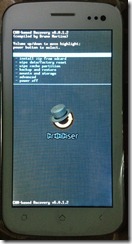
- Press Volume Up + Volume Down + Power button simultaneously till the screen lights up.
- A screen will ask you whether you want to go to Recovery or to Factory mode. Press Volume Up to go to Recovery mode.
- Select the Install Zip from SD card option and browse and select the zip file you downloaded in step 3.
Note for first-time Clockworkmod users: Press Volume Up to Scroll Up, Volume Down to scroll Down and Power button to select the highlighted option.
- After the installation of the zip file completes, select “Wipe Data/ Factory Reset”.
- To calibrate your battery, you should go to Advanced >> Wipe Battery Stats.
- The flashing process is now completed. To exit clockworkmod recovery, select reboot phone now.
- Check if your phone is rooted.
This is it. You are done installing the ROM. As stated above, this rom is pre-rooted, you don’t need to root it again. Enjoy the bugless Jelly Bean on your A110. If you notice a deteriorated camera quality, read this.
If you are facing troubles or having trouble understanding anything in this article, start a topic regarding your problem in an appropriate section
on our forums. Doing this will increase your chances of getting a solution even if I couldn't personally reply to your problem.
....................................
Source : http://www.droidiser.com/2013/03/install-jelly-bean-root-micromax-a110-easily.html


