Wednesday, January 15, 2014

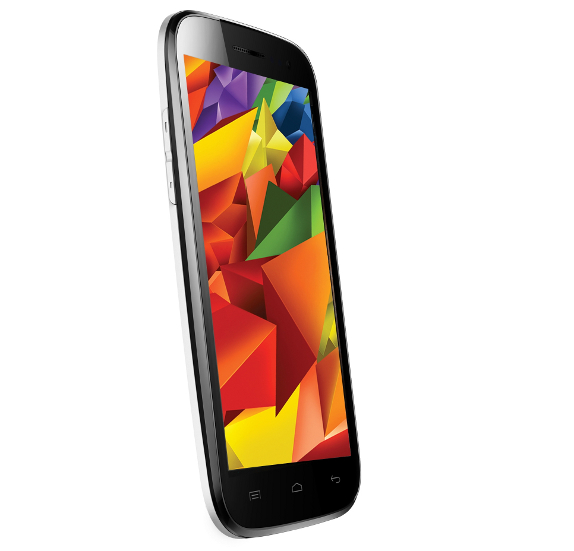
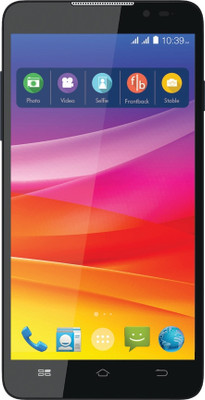
ROOT MICROMAX A117 (CANVAS MAGNUS)

ROOT MICROMAX A117 (CANVAS MAGNUS)


OFFICIAL STOCK ROM COLLECTION WITH FLASH INSTRUCTION


Quote:

Requirement

  • USB Cable
  • Micromax A117 
  • Windows PC
  • USB Driver
  • ADB Driver


Quote:
NOTE : I'm or XDA not responsible for anything cause wrong with your lovely phone
Do it with your own risk...

Method 1


  • Download Package from Attachment
  • Enable USB Debugging on Micromax A117 (Phone Setting > Developer Option > Check the USB Debugging)
  • Unzip Downloaded File to Desktop
  • Open Folder and Open RUN.BAT file from Extracted Folder
  • Press Any Key to ROOT
  • Now connect your phone...(now lets wait for driver installation on your pc...)
  • Wait till all process completion and again press any key to REBOOT your Phone...wait till reboot and your phone ROOTED Successfully...
    Enjoy ROOTING... 


Method 2


  • Download "Framaroot.apk" from XDA... search for it
  • Install as Normal Apk...
  • Open Framaroot and Root...
    Enjoy...
ATTACHED FILES
File Type: zipMicromax A117_Root.zip - [Click for QR Code] (2.29 MB, 2134 views)
Source : http://forum.xda-developers.com/canvas-magnus/development/stock-rom-v2-link-added-micromax-a117-t2503161

Wednesday, November 20, 2013

How to root Micromax Canvas 2 A110 with Original Jelly Bean 4.1.1 ROM

Follow the steps if you want to root your Micromax Canvas 2 A110 with a Jelly Bean 4.1.1 ROM.


Download the below files before we start the process

1. Micromax A110 Drivers download here
2. Micromax A110 VCOM Drivers download here
3. SP Flash Tool v3.1328 download here
4. CWM Recovery for Micromax Canvas 2 A110 (recovery.img) download here
5. SuperSU v1.04 (05_SuperSU_v1_04.zip) download here
6. MT6577_Android_scatter_emmc.txtdownload here

Warning: Before we start with the process, i will not be responsible for any data loss if you make any Mistakes and Bricked Devices. If you root your phone, it will void the warranty


And here are the steps you should follow.

1. First install Micromax Canvas 2 A110 drivers (Available in the built-in drive with the phone available in the USB Mass storage).
i am also attached micromax A110 driver following

2. now switch off your phon and Connect your phone via USB ( windows xp must be use) ....

3. 3. Unzip the Micromax A110 VCOM Drivers and install the drivers manually update this driver

4. Unzip the SP Flash Tool v3.1328 and open the tool Flash_tool.exe.

5. Click on the “Scatter-loading” button and select the “MT6577_Android_scatter_emmc.txt” from the Micromax Stock A110 JB 1.11 zip file.

6. Now make sure you have deselected every options except “RECOVERY”.

7. Click on “RECOVERY” and select the recovery.img (Make sure name is recovery.img)

8. now remove the battery and disconnect it from the PC.

9. Click the “Download” button in the Smart Phone Flash Tool.


10. Now connect the phone via USB in switch off mode (In the state mentioned in the step 8) to the PC, you will see the progress bar that the image is getting downloaded to the phone and once completed you will see the popup window a green circle.

11. Close the SP Flash Tool, turn on the phone and copy the 05_SuperSU_v1_04.zip file (Without unzipping) to the phone SD Card.

12. Switch off the phone and then switch on by pressing Volume Up + Volume Down + Power Button together. Select the recovery , get into the CWM recovery, choose the option Install from SD card, select the 05_SuperSU_v1_04.zip file and install the file.

13. Restart the phone normally you will find SuperSU App in the phone.

Now your phone is rooted!

Tuesday, June 18, 2013

Micromax A110Q Canvas Plus Rooting & Stock Rom

Micromax A110Q Canvas Plus Root by Bin4ry_V30 root tool. The Rooting procedure is really easy, and you should follow these steps: -

1) Rooting & Unrooting


First of all install Driver Micromax A116 Driver then follow these steps:-
1. Enable USB debugging on your device.
2. Go to Settings-- > Development-- > USB debugging check it.
3. Connect MMX A110Q using storage mode to PC & Install driver.
4. Stop Firewall & Antivirus During root process.
5. Change phone connection to Media device.
6. Download Tools -:- Root_with_Restore_by_Bin4ry_v30 thanks to link provider
7. Unzip Bin4ry the root tool.
8. Run RunMe.bat file (Do not Run as Administrator)
9. Follow the on screen instructions carefully. You will need to type "1" for root and press enter.
10. If you ever want to Unroot your Micromax A110 then type "x" and press enter.
11. Your device will reboot during the process,after the reboot Bin4ry will copy some files to your device. Now you have fully rooted your device.

Attention: Please follow the instructions carefully. I will not take any responsibility on whatever may happen with your phone.

2) Only for rooting (Auto Root Method)

Thanks to John

What should U do:

1) Make sure USB debugging is enabled. Go to settings > developer options > enable USB debugging,
2) Download AND Install MTK Drivers,
3) Extract the MTK6589 Auto Root folder from the .rar,
4) Connect your phone to PC visa USB and changa it into (MTP) mode.(USB) mode Won't work,
5) Run run.bat from the extracted MTK6589 Auto Root folder,
6) Press any key and wait while it roots your phone,
7) After finished, now reboot,
Wow, you’re rooted now.

Note = This method will work for all of MTK6589 Quadcore phones....

Do it at Your OWN Risk

Stock Rom V2

This is first update of Micromax A110Q Canvas 2 Plus. Micromax release stock Rom V2 for this phone. This update comes in software & improves hardware performance of Micromax A110Q Canvas 2 Plus.

Software release notes:

1. Quadband support, software is also backward compatible with dual band.
2. M! Live app, Hoops, Game hub, Kingston office suite applications are integrated in software.
3. New SAR values (Basis on Quadband) are integrated in software.
4. GMS is updated.

Hardware release notes:

1. Quadband hardware is introduced so Hardware version will be changed. Please share the new labels with new SAR values and new HW ver.
2. TP (BYD) is changed. BYD make is introduced.
3. Front camera (Sunwin) is changed. Sunwin make is introduced.

Follow these steps to Install stock Rom V2:-

1. Install Drivers (driver in your phone)
2. Download and Extract SP tool & Micromax Stock Rom V2 folder. Open Sp Tool folder and click & Rum sptool.exe Run as Administrator if you are using Windows vista/7/8
3. Select ' MT6589_Android_scatter_emmc.txt file inside the ROM folder.
4. Now Switch off Canvas 2 Plus.
5. Click Download Button in Sp tool.
6. Connect Phone {Switched off} to PC via USB Cable.
7. If every things right, flashing will precede
8. Wait till it finishes….. A green ring is displayed on completion.
9. Now Close SP tool….. Remove Phone from PC.
10. Switch ON the phone...It is successfully Flashed...

Note: I am not responsible if you make Mistakes and Bricked Devices.

Thursday, June 13, 2013

Official Stock Roms for Micromax A116 HD

Specifications of Micromax A116


MediaTek MT6589 chipset
1.2 GHz quad-core ARM Cortex A7 CPU
PowerVR SGX544 GPU
1 GB of RAM
5″ HD (1280 x 720 pixels) IPS (16.7 million colors) display
8MP rear camera with LED Flash
1080p video recording @ 30fps
2MP front facing camera
4 GB of internal storage
Up to 32 GB expandable memory via microSD card
2,000 mAh battery
Android 4.1 Jelly Bean OS out of the Box


Official Stock Roms:

Official Stock JB 4.2.1 Firmware (Sp Tools flashable ) : Donload Here

Official Stock JB 4.1.2 Firmware V0.20 (Sp Tools flashable ) : Download Here


Official Stock JB 4.1.2 Firmware V0.16 (Sp Tools flashable ): Download Here

Monday, June 3, 2013

Micromax Releases JellyBean 4.2.1 For Canvas HD A116

Micromax officially has released the update for Canvas HD A116 today and it supports Over the air (OTA) updates and is only available on MMX service centers.
Please get the updated rom on XDA so we can flash it at our homes 

updated JellyBean 4.2.1 with OTA functionality
GPS fixed
clear pictures from camera


check : MMX NewsCaster

check : FoneArena

You can download the stock 4.2.1 JellyBean from Here


All The things you need to Upgrade to 4.2.1 are given Here

To Flash the JellyBean 4.2.1 you need to do the Following steps and follow the steps or you may mess up the touch panel as the last part is tricky:


So here is a complete guide to update Micromax Canvas HD A116 to Android 4.2 Jelly Bean OS.


REQUIREMENTS

• A Micromax Canvas HD A116 with usb data cable
• Please ensure that the battery of your device is above 75%, so you don't get sudden shut down during our process.
• Take full backup of your device.
• Backup data like SMS, contacts, whatsapp data etc etc., as these would be formatted during the process.
• Install the drivers of Micromax Canvas HD from the official Micromax website.
• Download Jelly Bean OS ROM & SP FLASH TOOLS, that you will flash.
• Take the backup of the Calibration with the help of Maui Meta (This is to be done incase you mess up any thing while the upgrade. restore the calibration taken before flashing into the newly flashed rom)

INSTALLATION:


1. Install drivers - Mobistel_Cynus_T1_Drivers_x86 

2. Open SP_Flash_Tool_v3.1304.0.119
3. Select Scatter file from the downloaded ROM version 4.2.1 (extract downloaded file from winrar to different folder)and select all files.
4.Goto options->select usb & select USB Mode& DA Download All - & select force to High Speeds
5. Remove battery, Sim Cards & Memory Card
6. Press Firmware Upgrade (Don’t press download)
7. Insert USB data cable to PC & connect your phone & flash tool will detect your phone& downloadingstart automatically
8. When you see green circle than you are done.
9. Remove the cable from your phone insert battery & restart your phone.
10. It will take some times while re-starting and there will be TP Update popup. *
11. You are done& you can insert sim cards & memory card.

*NOTE:


After Flashing and updating from 4.1.2 to 4.2.1 there will be a TP UPDATE pop up which will update the TP automatically. So it is advised DON'T TOUCH PHONE's SCREEN ON FIRST BOOT (don't even press the OK button), LET THE TP UPGRADE DO HIS WORK,WAIT FOR AT LEAST 10-15 MINUTES BEFORE DOING ANYTHING.


When this appears you are done


ATTACHED THUMBNAILS
Click image for larger version

Name: 980385_323915894406309_1191475552_o.jpg
Views: 830
Size: 66.0 KB
ID: 2017260   Click image for larger version

Name: 977163_323915897739642_730702197_o.jpg
Views: 783
Size: 40.6 KB
ID: 2017261   Click image for larger version

Name: move-to-external-storage-ability.jpg
Views: 722
Size: 30.8 KB
ID: 2017262   Click image for larger version

Name: new-clock.jpg
Views: 695
Size: 12.4 KB
ID: 2017263   Click image for larger version

Name: 463853_323915891072976_1760779106_o.jpg
Views: 685
Size: 51.0 KB
ID: 2017274 

Sunday, May 19, 2013

How to Root Micromax Canvas HD A116

Micromax India has emerged as a potential player of Smartphone and tablet just from scratch. The smartphone manufacturer from india is no more a company manufacturing cheap dual sim phones, instead it is competing with giants like Nokia, HTC and Samsung. Recently it has launched a high specification value for money device, the Micormac Cnavas HD A116. The device is supposedly considered as one of the greatest competitors of all costly smartphones from other companies. The Micromax Canvas HD A116 is equipped with 1.2GHz quad-core MediaTek MT6589 processor coupled up with a PowerVR SGX5 GPU, and 1GB of RAM making it a powerhouse of specifications.
How to Root Micromax A116 Canvas HD
Here we are going to provide you with in-depth insight of how to root your Micromax Canvas HD A116 with simple to follow steps. Rooting Android device helps you overclocking which ultimately increase the performance of the device. It also helps you configuring restricted settings of your smartphone and to get most out of the hardware specifications.
Note : Make sure you take a full backup of your Android device before you follow the procedure below.
Disclaimer: Please carefully understand what you are proceeding with and where it will lead you to. Rooting voids your warranty (however you can unroot your device any time) and can potentially brick your device if you fail to follow the instructions carefully. Follow this guide at your own risk.

Requirements:

  • Micromax Canvas HD A116 generic handset. This guide is not applicable for any other device.
  • USB Cable for connecting device with PC

Pre-Requisites:

  • Fully back-up your Micromax Canvas HD A116.
  • Disable all security apps and programs like Antivirus and Firewall from your device.
  • Make sure that all the drivers are installed properly.
  • Make sure that your Micromax Canvas HD A116 is minimum 60% charged.
  • Enable USB debugging on your Micromax Canvas HD A116.
    • Go to Settings.
    • Scroll Down and Tap on “Developer option”.
    • Check on “USB debugging” option.
    • Click “Ok”.

How to Root Micromax Canvas HD A116

  • Download Rooting Tool and extract it on your computer.
  • Connect your Micromax Canvas HD A116 to your computer via USB cable.
  • Run the “RunMe.bat” file from the extracted folder downloaded in first step. This should open the command prompt.
  • Choose the Normal mode by typing ’1′ and hit Enter button from your keyboard.
  • Just follow the on-screen instructions to complete the Micromax Canvas HD A116 rooting process. Bin4ry will copy some files to your device and then your Micromax Canvas HD A116 will reboot.
  • When your phone is turned on, check out for superuser SU app in your app drawer. If it’s there, your Micromax Canvas HD A116 have been rooted successfully!
  • Reboot your Micromax Canvas HD A116 manually.
Quick Tip: If you ever want to Unroot your Micromax Canvas HD A116, run the ‘runme.bat’ file again, but this time type “x” instead of 1 and hit enter from your keyboard.
Do let us know if you have any queries in the comment box below, we’ll try to resolve the same.

.......................

How to Root Micromax A116 Canvas HD and install CWM (custom) recovery in it| Easy Meathod

How to root micromax a116 canvas HD or rooting micromax a116 canvas HD. Rooting Micromax A116 Canvas HD is some much tough then rooting other android devices because MTK and rooting MTK needs many things but not much tough to root.. So i am now making new 100% working guide to root micromax a116 Canvas HD. I will show you how to flash/install clockworkmod recovery and rooting micromax a116 Canvas HD. Micromax A116 Canvas HD is a superb phone and not that much costly. It is compared to Samsung Galaxy Grand, Micromax A116 Canvas HD wins. For full color fun and gaming, the awesome IPS LCD capacitive touchscreen, 16M colors is provided which is brilliant. 5.0 Inches of screen is a great screen for gaming, camera and other pictures. 1 GB of RAM is provided for multitasking, gaming and full flawlessly experience. The Camera quality is very awesome because it is provided with 8 MP, 3264 x 2448 pixels, autofocus, dual-LED flash which is nice and with many powers like Geo-tagging, touch focus, face detection. Secondary camera is really cool! secondary camera is 2 MP, VGA video rec. which is better than of Karbonn A9+ and Karbonn A21. The video playback is 720p HD (High Definition) which can give approximately 30fps (device can give, not HD playback) but it would be better if it would be 1080p HD playback like of LG Optimus L9 P769 but it is LG and it is micromax but still micromax a116 canvas HD is better. Processor is cool Quad-core 1.2 GHz Cortex-A7 which is really fast guys! Most devices have Single Core, some has Dual Core but it is Quad Core which is mind blowing and awesome for gamers and game lovers! wait..but...processor cannot make games fast! there should be great GPU in phone, yep! micromax a116 canvas HD has an awesome GPU, PowerVR SGX544 now open your Google Play Store and start downloading any  HD or high end games like Temple Run: 2, Grand Theft Auto (GTA): Vice City, Need for Speed: Most Wanted, Temple Run: OZ they will surely work in micromax a116 canvas HD. Without sensors android device is nothing, this a116 Canvas HD is having Accelerometer, gyro, proximity, compass sensors which are nice for any person. It is having JellyBean (Android: 4.1) but i think it is upgradable to JellyBean (Android: 4.2) and not like Micromax A110 Canvas 2Karbonn A21 or any other device which are high end and having GB or ICS. The Bluetooth version is v4.0 which is really cool. Awesome chipset provided by MTK (MediaTek), MTK MT6589


Must See:

Why To Root | Features of Rooting

Stock Rom for Micromax A116 Canvas HD

First Custom Rom for Micromax A116 Canvas HD


What to Downloads-

1 Download SP tools

2 Download ClockWorkMod Recovery

3 Download Drivers

4 Download SU package

5 Downlaod SU bin

MT6589_Android_scatter_emmc.txt


You are rooting your phone with your risk. I am not responsible for your bricked micromax a116 canvas HD.


Steps To Flash ClockWorkMod Recovery-


1 Install SP tools from link given above.


2 Install Drivers from like given above.


Click on the Scatter-Loading button on right side below downloading agent and choose MT6589_Android_scatter_emmc.txt.


4 now you will see many entries. Untick all except recovery.


5 click on recovery and select clockworkmod recovery.img.


6 Now take of the battery from phone.


7 Click on "Download" button on SP tools, ignore warning(s) and hit "yes".


8 Now connect your phone to Computer with USB and it will flash new clockworkmod recovery to your micromax a116 canvas HD.


9 It will start flashing the CWM to your canvas HD. you can view the process by yellow progress bar.


>>>Don't Play with phone, it can NOT brick your phone but recovery will not be installed.<<< 

But do not try this.


10 when you will see big green ring, it means it is done.


11 Now disconnect your device with Computer.


12  press the Volume Up + Volume Down + Power Button. You will see modes, select recovery mode. If you see clockworkmod in it. Then yippy you have flashed clockworkmod recovery in it.


How to operate it: volume up/down button to move list up down. To select anything, press 1 power button.


Steps To Root Micromax A116 Canvas HD-


1 Download SU pack and SU bin files (4th and 5th in downloads)


2 Reboot to recovery ( press the Volume Up + Volume Down + Power Button. You will see modes, select recovery mode. If you see clockworkmod in it. Then yippy you have flashed clockworkmod recovery in it.

How to operate it: volume up/down button to move list up down. To select anything, press 1 power button.)


Goto "Install zip from sdcard" and choose files"Superuser-3.1.3-arm-signed.zip" and "su-bin-3.1.1-arm-signed.zip" in which place you placed those files.


4 When it will be flashed, choose reboot system now option.


5 when you have rebooted your device, you will see "superuser SU" application.


Yo Yo! you have rooted!


Please share this post and please don't forget to leave comments on this post. Thanks for visiting my blog.


Now, you can install custom roms which are available for micromax a116 Canvas HD like JellySmart Custom Rom v1 or JellySmart v1.1 custom rom

Buy Best Smartphones at Low Price in India.

1.  MICROMAX CANVAS NITRO A311 Specifications : Dual SIM, 3G Android v4.4.2 (KitKat) (can be update to Android Lollipop...